
How to Use Microsoft Word and Copilot to Organize Your Meeting Notes for Free
Learn how to use Microsoft Word's Transcribe feature to create a meeting transcript, then use Copilot to organize the conversation into summaries and action items.

Have you ever left a meeting wondering what happens next? You finish a client call, team meeting, or project discussion feeling productive. Important decisions were made. New ideas were shared. Tasks were assigned. And everyone seems on the same page.
Then a few hours later, you find yourself asking:
Wait, what exactly did we decide? Who was assigned which task? Wasn’t there a deadline attached to that? Where did I save my notes?
If you’ve ever struggled to keep up with meeting notes while actively participating in a conversation, you’re not alone.
The challenge isn’t capturing information. It’s turning a long conversation into something useful.
The good news is that you may already have everything you need.
If you use Microsoft Word and Microsoft Copilot, you can create a simple workflow that helps you transcribe meetings, organize information, and identify action items to send a follow-up email without purchasing a dedicated meeting note software…at least, not yet.
Here’s how.
What You’ll Need
First, before jumping in, it’s important to know whether your version of Microsoft Word supports transcription.
The Transcribe feature is available in Microsoft Word for the web for Microsoft 365 subscribers. Depending on your account type and subscription level, feature availability may vary.
Here’s how to check whether you have access:
- Open Microsoft Word on your local machine or on the web.
- Select Home in the tab menu.
- Next, Look for Dictate.
- Open the dropdown menu and check for Transcribe.
If Transcribe is available, you’re ready to begin.

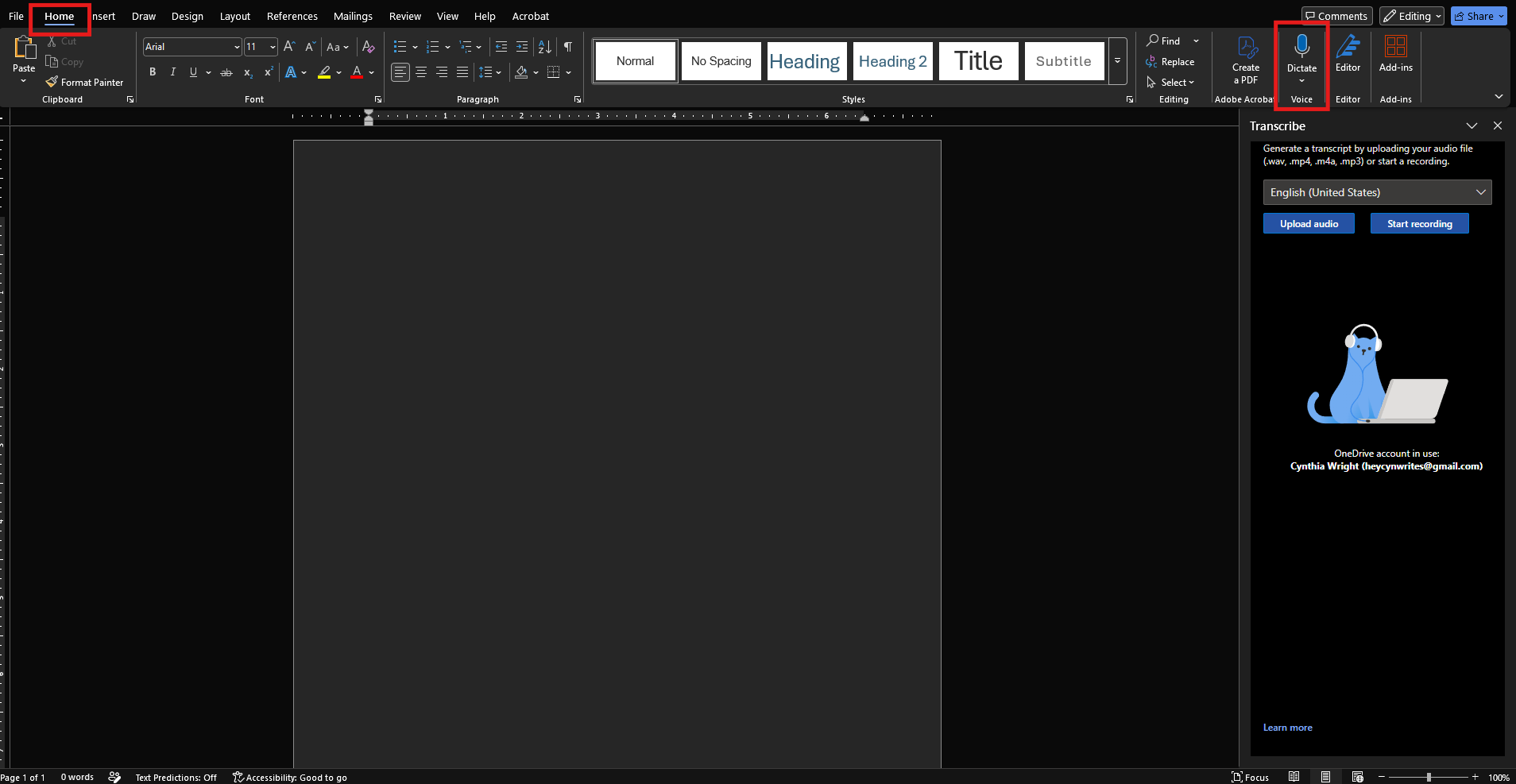
Click to enlarge images
However, if you don’t see the feature, you still have options.
Zoom and Microsoft Teams both offer meeting recordings and transcripts, depending on your account settings.
You can use those transcripts with Copilot in the same way using the steps described in this post.
Next, make sure you have the following items handy:
- A Microsoft 365 subscription
- Access to Microsoft Word
- A Zoom or Microsoft Teams meeting
- Permission to record or transcribe the conversation
- Microsoft Copilot (or ChatGPT)
Step 1: Capture and Transcribe the Meeting
The first step is creating a transcript.
In Microsoft Word:
- Open a new document.
- Navigate to Home > Dictate > Transcribe.
- Choose Start Recording.
- Verify that your microphone is working properly.
- Conduct your meeting.
- Stop recording when the conversation ends.
- Allow Word to process the recording.
Word will generate a transcript that includes timestamps and speaker information when available.
Now, the transcript becomes your source of truth. Having a complete record makes it easier to confirm what was actually discussed if questions arise later.
Step 2: Use Copilot to Create Organized Meeting Notes
Transcripts are useful, but they aren’t exactly easy to review.
A thirty-minute meeting can easily generate several pages of text. And digging through a transcript to find one decision or task can take longer than the meeting itself.
This is where Copilot becomes valuable.
Copy your transcript into Word and open Copilot. Then use a prompt that tells Copilot exactly how you would like the information organized.
AI Prompt to Organize Meeting Notes
📋 Copy-and-Paste AI Prompt
Save this prompt for your next Zoom or Microsoft Teams meeting.
          Review this meeting transcript and create structured meeting notes.
          Organize the results into the following sections:
          1. Executive Summary
          2. Key Discussion Points
          3. Decisions Made
          4. Action Items
          5. Outstanding Questions
          6. Risks or Concerns Mentioned
          For each action item:
          - Include the task
          - Include the responsible person if explicitly mentioned
          - Include deadlines if explicitly mentioned
          - Mark unassigned tasks as "Owner Not Specified"
          Do not invent information that was not discussed in the meeting.
This prompt helps transform a lengthy transcript into an organized document that is easier to review, share, and reference later.
Step 3: Highlight Action Items and Next Steps
For most meetings, action items are the most important outcome.
But, unfortunately, they’re also the details most likely to get lost.
After generating your summary, ask Copilot a second question focused exclusively on follow-through and action items.
This creates a clean task list that can be copied into:
- Microsoft To Do
- Notion
- Asana
- ClickUp
- Your client project folder
AI Prompt for Action Items
📋 Copy-and-Paste AI Prompt
Save this prompt for your next Zoom or Microsoft Teams meeting.
          Review this transcript and identify every action item discussed.
          Create a table with:
          - Task
          - Owner
          - Deadline
          - Status
          - Notes
          If an owner or deadline was not explicitly assigned, indicate that it is missing rather than making assumptions.
Step 4: Review Before Sharing
Yes, Artificial Intelligence can save time, but AI should never replace human review.
Occasionally, Copilot may misunderstand context or mistakenly present a suggestion as a final decision.
So, before you share your meeting notes, double check the following:
- Verify the meeting’s key decisions.
- Confirm everyone’s assigned responsibilities.
- Check any dates and deadlines.
- Remove sensitive or confidential information if necessary.
- Make sure the action items accurately reflect the discussion.
Step 5: Turn Your Notes Into Follow-Up Communication
Once your notes are organized, you can use Copilot one more time to draft follow-up communications.
AI Prompt for a Follow-up Email
📋 Copy-and-Paste AI Prompt
Save this prompt for your next Zoom or Microsoft Teams meeting.
          Using these meeting notes, draft a professional follow-up email that summarizes the discussion, confirms decisions made, lists action items, and outlines next steps.
          Keep the tone concise and professional.
And within seconds, you’ll have an email draft that can be edited and sent to meeting attendees.
This helps keep everyone on the same page while reducing the time spent writing recap emails manually.
Make Your Meeting Notes Work for You
Good meeting notes can be a tool for ensuring work actually gets done.
By combining Microsoft Word’s Transcribe feature with Copilot, you can create a simple workflow that organizes information, pulls action items, and supports better follow-through.
The best part is that many people already have access to these tools through Microsoft 365.
So, in summary, here is your simple meeting notes workflow: Start with your next Zoom or Microsoft Teams meeting. Capture the transcript, run it through Copilot, review the results, and extract the next steps.
You’ll spend less time sorting through notes and more time taking action on the tasks that actually move your projects forward.